Every number that matters, one export away.
Ready-made reports, one click to CSV, or a custom builder for exactly the fields you need, scheduled to your inbox if you like.
Sign upIncluded on every plan, Free included.
Every number that matters, one export away.
Ready-made reports, one click to CSV, or a custom builder for exactly the fields you need, scheduled to your inbox if you like.
Sign upIncluded on every plan, Free included.
The reports organizers actually run
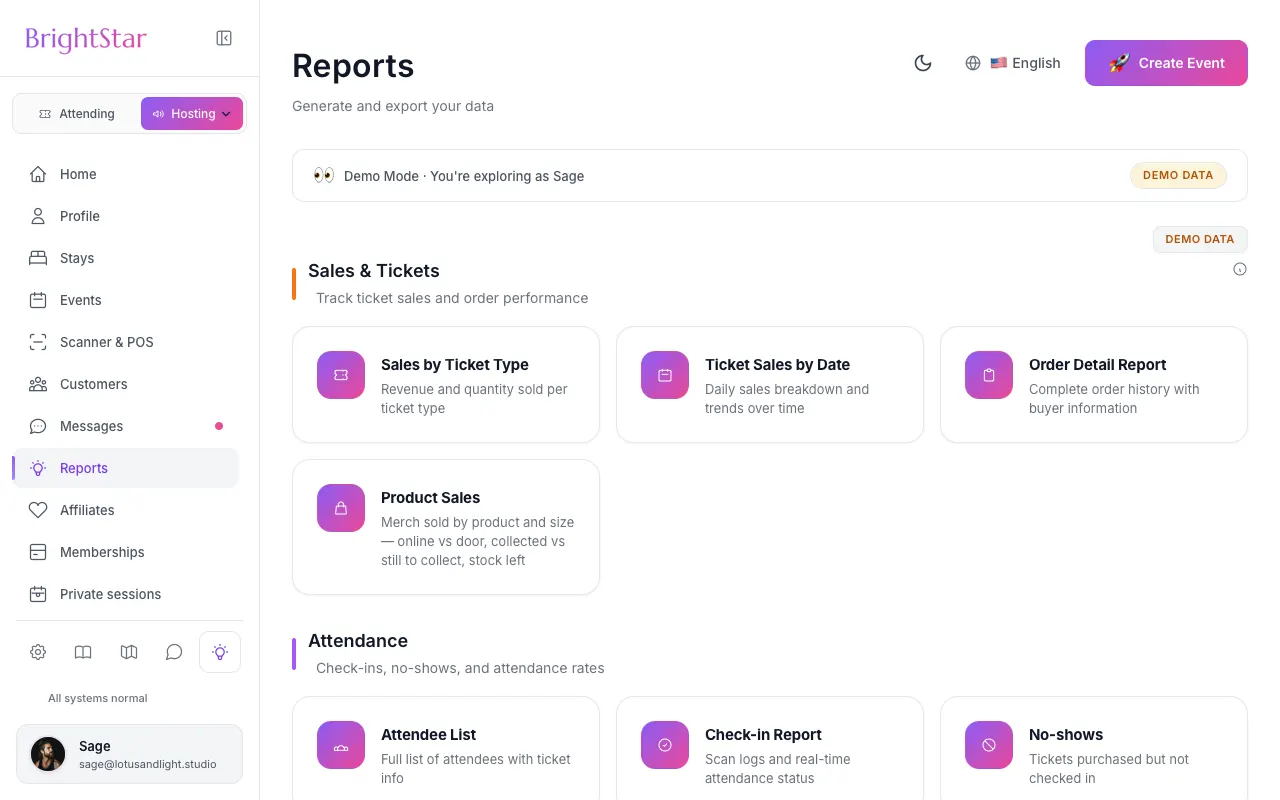
Ready the moment you need them
Sales by ticket type, attendees, orders, revenue by date, refunds, customers, check-ins and question answers.
Build your own
Pick fields across event, ticket, attendee and money (gross, net, fees, referral source) and BrightStar assembles the CSV.
Scheduled to your inbox
Set a report to run daily, weekly or after the event, and it emails itself to you, your accountant or your board.
How it works
Pick a report, or build one
Start from a ready-made report, or open the builder and check the fields you want.
Filter to what you need
One event or your whole account, any timeframe, any currency you sell in.
Export or schedule
Download the CSV now, or set it to email itself on a schedule.
Loved by artists and organizers
“Not only does BrightStar offer a powerful software platform that has worked very well for my events, but their client support is the best. Their communication is personal, heart-centered, and always thoughtful.”

Peter KaterTwo-Time Grammy Winner (Client Since 2014)
“We've been so happy with the outstanding customer service that we've received while working with BrightStar, and feel great about supporting a company that is authentically committed to the ideals of higher consciousness.”

Eric ForbisFounder, BuddhaFest (Client Since 2012)
“For nearly two decades, Akal (owner of BrightStar) has been lending his skills and talents in support of the Bhakti movement. His platform uniquely serves our movement with authenticity and heart. The technology also rocks!”

Jai UttalGrammy Nominee (Client Since 2014)
Questions organizers ask
Which formats can I export?
Every report downloads as a CSV that opens in Excel, Numbers or Google Sheets.
Can someone else receive a report?
Yes. A scheduled report can go to any address you add, such as your accountant or a partner.
Do reports show fees separately?
Yes. Gross, net, the platform fee and card processing are separate fields, so the numbers reconcile.
Read more
Reports for the questions you actually ask
After an event, and often before it, an organizer needs a handful of answers. How many of each ticket did we sell? Who is coming? What did we take, and what is left after fees? Who asked for their money back? The Reports area of your dashboard is built around those questions. You pick a report, pick the event, and the report fills in from your live orders.
Sales reports
Sales by Ticket Type shows how each ticket type sold: quantities and money, type by type. Ticket Sales by Date shows the same sales across time, so you can see when people booked and what an announcement did. Order Detail lists every order with its buyer, tickets, amounts and status. Revenue Summary gathers the money view for an event: gross, discounts, the platform fee and card processing as separate figures, refunds, and net.
Reports for the door
The Attendee List is the report most organizers open first: every ticket holder with their ticket type, and their answers to your checkout questions as columns of their own. The Check-in report shows who has arrived. The No-shows report shows who held a ticket and did not come, which is useful when you plan the next date or want to write to people who missed it.
Refunds, codes, recovery and upsells
Transfers, Credits and Refunds lists the tickets that changed hands and the money that went back. Discount Usage shows how each discount code was used. Cart Recovery lists the orders that were completed after a reminder. The Upsells report shows what your add-ons and recommended events brought in, including sales made through other organizers’ carts. Together they tell you which of your tools earned their place.
Shape the export before you download it
Every report exports as a CSV file that opens in Excel, Numbers or Google Sheets. Before the file is made, a customizer lets you sort the rows, hide columns you do not need, put the columns in your own order and filter by value, with totals that recalculate as you filter. You can save a column layout under a name and use it again, so the list you send to your caterer always looks the same. Reports can also be exported as a PDF.
Sent to your inbox
If you would rather receive a report than fetch it, you can have it emailed to you. On Pro and Amplify, an event can also have scheduled reports: daily, weekly or monthly, or at milestones, covering a period you choose and using a saved column layout. The email contains a download link that stays valid for seven days. A scheduled report can go to other people too, such as a co-organizer or your bookkeeper.
Fees shown separately
BrightStar keeps the money view honest by not blending figures. Gross revenue is the ticket total plus any custom fee you charge. The platform fee and card processing are shown as their own lines. Whether those fees were paid by the buyer on top of the price or absorbed by you depends on the setting of each event, and the net figure follows that setting. Free orders carry no fees at all.
One currency at a time
If you sell in more than one currency, each event’s report is in that event’s currency. Totals in different currencies are shown side by side and are never added together into one misleading number, because BrightStar does not convert between currencies.
Who can see reports
Reports follow the access you have given. Teammates see reports for the events their role includes, and money figures only when their role includes money. A door volunteer with scan access does not see your revenue. This lets you share the Attendee List with the people who need it without opening your finances.
Where it is included
Reports and CSV export are part of every plan, including Free. Scheduled reports are on Pro and Amplify. The reports that depend on a paid feature, such as Discount Usage or Cart Recovery, have something to show once that feature is in use on an event.
A simple rhythm for using reports
A week before the event, export the Attendee List with the answers the kitchen and the registration desk need. On the morning of the event, look at Sales by Ticket Type to know how many of each ticket to expect, and have the Check-in report ready for the door team. The day after, read the No-shows report and Revenue Summary. A month later, compare Ticket Sales by Date with what you announced and when. Four looks, a few minutes each, and you know your event better than most hosts ever do.
For your bookkeeper
The Order Detail and Revenue Summary reports are the two an accountant will ask for. Order Detail gives one row per order with its amounts; Revenue Summary gives the totals with fees separated. Because every paid ticket is processed by Stripe into your own Stripe account, the payouts in your Stripe Dashboard are the bank-side record, and these reports are the sales-side record that explains them.
Keeping exports safe
A guest list contains personal information. Share exports only with the people who need them, send the scheduled report to named addresses, and delete old files when the event is over. The seven-day life of a scheduled download link exists for the same reason: a list should not stay reachable forever from a forgotten email.
Maestro
Maestro works in your dashboard: ask in your own words, check the change on one card, tap to apply.
See the feature →Message Center
One inbox on every plan. Automatic replies with Pro and Amplify.
See the feature →Ticket Scanner
One app for the door: download BrightStar Organizer, sign in with your team login, pick the event and scan.
See the feature →Team access
Invite the people who run your events with you, give each one a role, and keep money and buyer details to those who need them.
See the feature →Email Sequences
Confirmations go out the moment someone buys, and timed reminders keep your event in mind until the day.
See the feature →AI FAQ Assistant
Your event page carries its own questions and answers, and an assistant on the page answers the rest from your event’s details.
See the feature →See allThere is more to see.